Trusted by 14,000+ creators worldwide

Audio to Video AI

Turn audio into engaging videos instantly with Audio to Video AI. Add dynamic visuals, captions, animations automatically, and let the AI add super relevant media.

Upload audio or paste a URL to transform spoken content into a captioned video with relevant visuals and short-form pacing.

  • Upload audio or video
  • Add captions automatically
  • Relevant visuals
  • Great for podcast clips

Convert Audio to Video with AI in 4 Simple Steps

1 Upload Your Audio or Paste a URL

Start by uploading an audio file, video file, podcast recording, interview, lecture, voiceover, or by pasting a YouTube URL. Revid's audio to video AI works best with spoken content such as podcasts, interviews, tutorials, recorded talks, and voice recordings.

2 Choose Full Video or AI Highlights

Decide whether you want to convert the full audio to video or let the AI extract the best short highlights. If you choose highlights, you can tell the AI what topics, keywords, product mentions, or moments you want to find, then generate one or multiple short clips from the same audio or video file.

3 Add Captions, B-Roll, and Smart Visuals

Customize how your audio to video conversion should look. Enable automatic captions, add AI-selected B-roll, choose split-screen or full-screen visuals, select stock footage, AI video, moving AI images, motion graphics, static gameplay-style backgrounds, or your own uploaded media. You can also enable auto-reframe to optimize the video for vertical platforms like TikTok, Instagram Reels, and YouTube Shorts.

4 Generate, Edit, and Export as MP4

Click generate and Revid will transcribe your audio, identify the most relevant moments, add visuals, captions, pacing, and scene changes, then create a ready-to-share video. Once your audio to video AI generation is complete, you can edit captions, adjust clips, refine visuals, and download the final video as an MP4 for any platform.

01

Turn Audio Into Video with AI — No Footage Required

Got a podcast episode, voiceover, or music track but no visuals to go with it? Revid's audio to video AI takes your audio file and automatically generates a matching video with relevant visuals, animated waveforms, captions, and scene transitions synced to your sound. Just upload your audio, choose your visual style, and let the AI build the video around it. No camera, no stock footage hunting, no manual editing.

02

How the Audio to Video AI Generator Actually Works

Revid's audio to video AI generator analyzes the content, tone, and pacing of your audio to determine the best visual treatment. For spoken word content, it generates caption-driven video with supporting imagery. For music, it creates rhythm-synced visual sequences. For podcasts, it identifies key moments and builds shareable clips automatically. The result is a finished video that feels intentional not like it was auto-generated.

03

MP3 to Video AI — From Audio File to Publishable Content in Minutes

Revid supports all major audio formats including MP3, WAV, and M4A. Drop in your file, select your output format vertical for Reels and TikTok, horizontal for YouTube — and our AI handles the rest. Whether you're repurposing a recording, launching a music video, or turning a lecture into shareable content, Revid's MP3 to video AI delivers a polished result every time.

04

Your Audio Already Has an Audience. Video Gets You a Bigger One

Most audio creators — podcasters, educators, coaches, musicians — already have great content. What they lack is the visual layer that platforms like TikTok, Instagram, and YouTube Shorts reward with distribution. Revid's audio to video converter removes every barrier between your existing audio library and a consistent video presence. There is no camera to set up, no video editing timeline to learn, and no starting from scratch. Every recording you have ever made is already a video waiting to be generated.

Example Videos

See What You Can Create with Audio to Video

Explore different styles and possibilities with our Audio to Video

Voice-Overs with Visual Impact

Turn voice recordings, audiobooks, or educational content into visually compelling videos. Add dynamic visuals that keep viewers engaged from start to finish.

  • Smart visual matching to audio content
  • Educational graphics and animations
  • Chapter markers and progress indicators
  • Export in any aspect ratio for any platform
Voice-Overs with Visual Impact

Interview Videos That Engage

Convert audio interviews into professional video content. Perfect for media companies, HR departments, and content creators who want to maximize the value of their interview recordings.
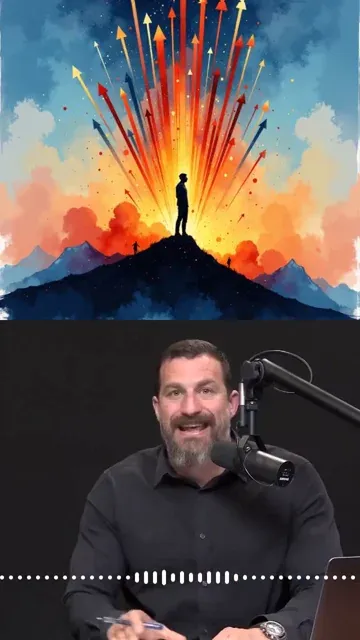
  • Multi-speaker transcription and labeling
  • Relevant stock footage and imagery
  • Key quote highlighting and emphasis
  • Optimized for LinkedIn, YouTube, and websites
Interview Videos That Engage

Podcast Clips That Go Viral

Transform your long-form podcasts into engaging, shareable video clips. Our AI automatically identifies the most compelling moments and adds perfectly synchronized visuals that amplify your message.

  • AI-powered highlight detection for viral moments
  • Automatic B-roll matching your content
  • Professional captions with speaker detection
  • Multiple clips from a single podcast episode
Podcast Clips That Go Viral
FAQs

Frequently Asked Questions

What is the Audio to Video AI tool?
Revid's Audio to Video AI tool is an AI audio to video converter that turns audio files, podcasts, interviews, voiceovers, lectures, and recorded talks into engaging videos. Instead of manually editing footage, adding captions, and searching for visuals, you upload your audio and Revid automatically creates a captioned video with relevant B-roll, animations, visual scenes, and short-form pacing. It is designed to make audio to video creation fast, simple, and suitable for TikTok, YouTube Shorts, Instagram Reels, LinkedIn, and YouTube.
How do I convert audio to video with Revid?
To convert audio to video, upload your audio file or paste a supported URL, choose whether you want to use the full duration or extract AI highlights, then select your visual options. Revid will transcribe the audio, understand the topic, add captions, find or generate relevant visuals, and create a finished video. The audio to video process is fully automated, but you can still edit the result before exporting it as an MP4.
Can I turn an MP3 into a video?
Yes. Revid works as an MP3 to video AI converter, allowing you to upload an MP3 file and turn it into a video with captions, visuals, motion, and B-roll. This is useful if you have a podcast episode, voice memo, narration, audiobook excerpt, coaching call, or music-related audio that you want to publish as video content. The final result can be downloaded as an MP4 video.
What types of audio work best for audio to video AI?
The audio to video AI tool works best with spoken audio, including podcasts, interviews, voiceovers, lectures, webinars, recorded presentations, courses, coaching calls, and educational content. Revid can also process video files when you want to repurpose the speaking parts into new clips. Clear speech and good audio quality usually produce better captions, better highlight detection, and more relevant visuals.
Can I use this tool to create podcast clips?
Yes. Revid is ideal for podcast to video workflows. You can upload a long podcast episode or paste a video URL, then choose whether to turn the full episode into a video or extract short podcast clips. If you disable full duration, the AI can find the best moments and create one, two, or three short videos from the same file. This makes it easy to repurpose podcasts into TikTok videos, YouTube Shorts, Instagram Reels, and LinkedIn clips.
Can the AI find highlights from my audio automatically?
Yes. If you do not want to use the full audio duration, Revid can analyze your audio or video file and extract the strongest moments automatically. You can also guide the AI by writing what you want it to find, such as a product mention, a specific topic, a controversial opinion, a funny moment, or a key lesson. This makes the audio to video tool useful for quickly creating short-form highlights from long audio content.
Does the audio to video converter add captions automatically?
Yes. Revid automatically transcribes your audio and adds captions to the generated video. Captions are especially important for short-form platforms because many viewers watch without sound. The audio to video AI creates caption-driven videos that are easier to watch, more accessible, and better optimized for TikTok, Instagram Reels, YouTube Shorts, LinkedIn, and other social platforms.
What kind of visuals can Revid add to my audio video?
Revid can add several types of visuals to your audio to video project. You can use AI video, moving AI images, motion graphics, stock videos, static or gameplay-style backgrounds, or your own uploaded media. When B-roll is enabled, the AI searches for or generates visuals that match what is being said in the audio, making the final video feel more relevant and engaging than a simple waveform video.
What is B-roll in the Audio to Video AI tool?
B-roll is supporting footage or imagery that appears while your audio plays. In Revid's audio to video AI tool, B-roll can be added automatically based on the transcript and topic of your audio. For example, if your podcast discusses business growth, the AI can add relevant business visuals; if your lecture discusses history, it can add educational imagery. You can choose split-screen B-roll or full-screen B-roll depending on the style you want.
What is the difference between split-screen and full-screen B-roll?
Split-screen B-roll keeps the original speaker or main visual visible while adding relevant media beside it, which is great for podcast clips and talking-head content. Full-screen B-roll replaces the main visual during certain moments with relevant footage, AI images, stock clips, or motion graphics. For audio-only files, both styles can help make the audio to video output more dynamic and easier to watch.
Can I create vertical videos for TikTok, Reels, and YouTube Shorts?
Yes. Revid is built for short social videos, so the audio to video AI can create vertical videos for TikTok, Instagram Reels, and YouTube Shorts. The auto-reframe option helps adapt existing video content to a mobile-friendly aspect ratio, keeping important subjects centered whenever possible. This is especially useful when turning podcasts, interviews, or horizontal videos into vertical short-form clips.
What does the auto-reframe option do?
Auto-reframe uses AI to adapt your video to a mobile-first format by keeping the most important visual areas in frame. If you upload a video podcast, interview, webinar, or talking-head recording, auto-reframe can help convert it into a vertical video that works better on TikTok, Reels, and YouTube Shorts. In this audio to video tool, auto-reframe costs additional credits when enabled.
Can I use the full duration of my audio file?
Yes. If you enable the full duration option, Revid will convert the complete audio file into a video. This is useful for turning a full voiceover, lecture, podcast segment, audiobook sample, or presentation into a complete video. If you prefer shorter social clips, you can disable full duration and let the AI extract approximately one-minute highlights instead.
Can I generate multiple videos from one audio file?
Yes. When using highlight extraction, Revid can create multiple short videos from the same audio or video file. You can choose how many extracts you want, up to three. This is useful for creators, podcasters, marketers, and agencies who want to turn one long piece of audio into several short videos for different platforms.
Can I paste a YouTube URL instead of uploading a file?
Yes. The Audio to Video AI tool supports uploading a file or pasting a supported URL, such as a YouTube link. This is helpful when you want to repurpose a video podcast, interview, presentation, or long-form YouTube video into shorter captioned videos. Revid can analyze the content, transcribe it, and generate a new video with captions and relevant visuals.
What file formats can I use for audio to video conversion?
Revid supports common audio and video inputs used by creators. You can upload audio files such as MP3, WAV, and M4A, as well as supported video files when you want to repurpose existing content. After the audio to video AI generation is complete, you can export the finished result as a shareable MP4 video.
Is this tool only for podcasts?
No. While the audio to video converter is excellent for podcast clips, it can also be used for voiceovers, interviews, educational recordings, lectures, webinars, audiobooks, product explainers, coaching calls, internal training, and social media content. Any spoken audio that would benefit from captions and visuals can be transformed into video with Revid.
How long does it take to convert audio to video?
Most audio to video generations are completed in a few minutes, depending on the length of the file, the number of highlights requested, the visual style selected, and whether B-roll or auto-reframe is enabled. Longer files, AI-generated visuals, and multiple extracts can take more time, but Revid is designed to make the process much faster than manual video editing.
Can I edit the video after it is generated?
Yes. After Revid converts your audio to video, you can open the result in the built-in editor. You can adjust captions, trim clips, change visuals, refine timing, edit text, and polish the final video before downloading it. The AI gives you a strong first version, and the editor lets you make it match your exact style.
How much does the Audio to Video AI tool cost?
The cost depends on your selected settings and your Revid credit balance. Options such as auto-reframe, AI visuals, B-roll, longer files, or multiple generated extracts may affect the number of credits used. Before starting the audio to video generation, Revid shows the estimated credit cost so you know what to expect.
Can I use videos made with the audio to video converter commercially?
Yes, you can use videos created with Revid for commercial purposes, including marketing content, social media posts, podcast promotion, course clips, business videos, and monetized content, as long as you have the rights to the audio, footage, images, music, and any uploaded media you use. Make sure your content follows Revid's terms and the rules of the platforms where you publish.
Why should I use an AI audio to video converter instead of editing manually?
Manual audio to video editing can take hours because you need to transcribe the audio, cut clips, design captions, find B-roll, sync visuals, resize for each platform, and export the final video. Revid automates those steps with AI. It is built for creators who want to turn existing audio into video quickly, consistently, and without learning complex editing software.
View Complete Help Center

Find detailed answers to 100+ questions about features, tools, and workflows

or check our markdown version optimized for LLMs

Tools

Free AI Video Tools

Choose your tool, add your content, and create a video in seconds. Then customize it to your liking.

AI TikTok Video Generator

Turn text into trendy, viral TikTok videos in a snap

Try it out

Prompt to Video

Turn your prompts into engaging videos with AI assistance

Try it out

Add Caption to Video

Generate subtitles in 100+ languages with AI captions

Try it out

PDF to Brainrot

Convert PDFs into attention-grabbing, scrollable videos

Try it out

Text to Brainrot

Turn your text into trendy, scrollable content with dynamic visuals

Try it out

AI Talking Avatar

Create lifelike talking avatars from text in seconds

Try it out

Video Podcast Generator

Transform your podcasts into visually engaging video content

Try it out

AI Movie Maker

Create studio-quality videos from text, no filming required

Try it out

Audio to Video

Make engaging videos from your podcasts, interviews, or any audio content

Try it out

Animated Lyrics Video Generator

Turn any song into an animated lyric video with synced text and visuals.

Try it out

AI Music Video Generator

Transform your music into cinematic music videos.

Try it out

AI Lyrics Video Generator

Transform your lyrics into a complete music video with AI

Try it out
See all tools
How it works

Four simple steps to create and share your video

1
Step 1

Find your next viral idea

Lacking inspiration? Our AI spots trends and helps you adapt them for your own videos, hassle-free.
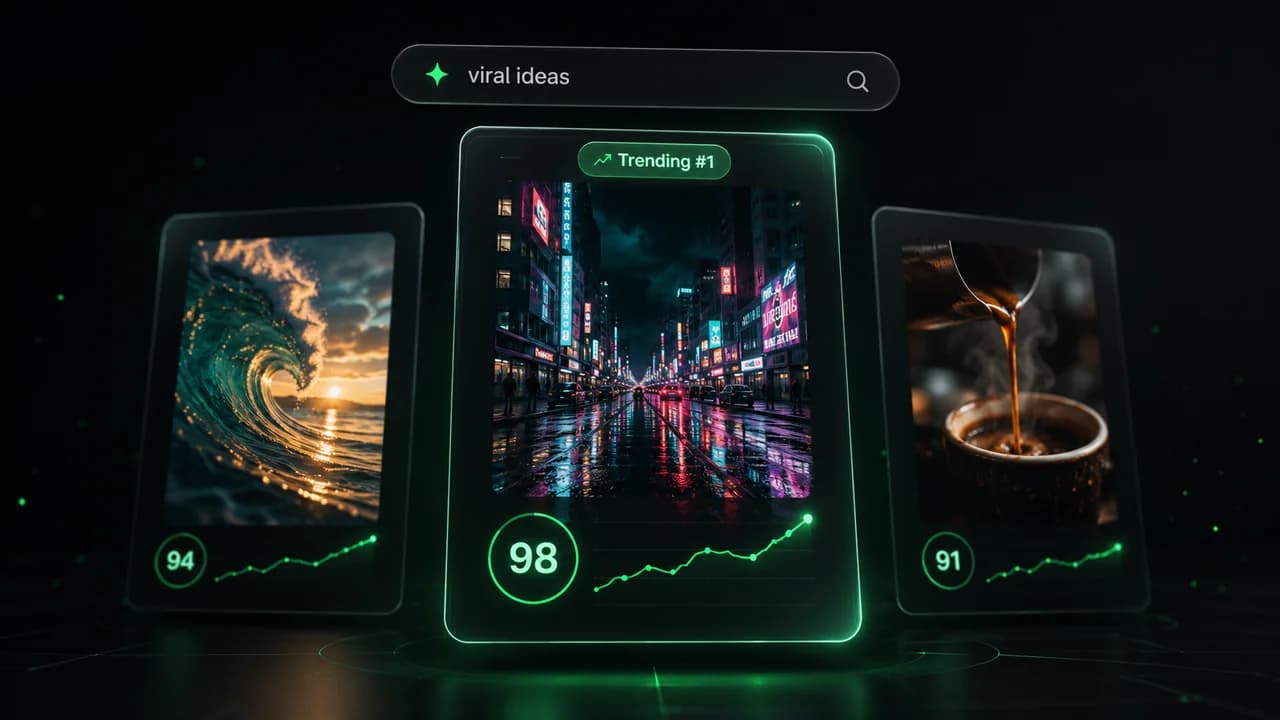
  • Identify the best performing formats
  • Get inspired by top creators
  • Turn your ideas into captivating videos
Find your next viral idea
2
Step 2

Storytelling designed to captivate

Revid.ai analyzes viral videos and uses those same codes to write your scripts.
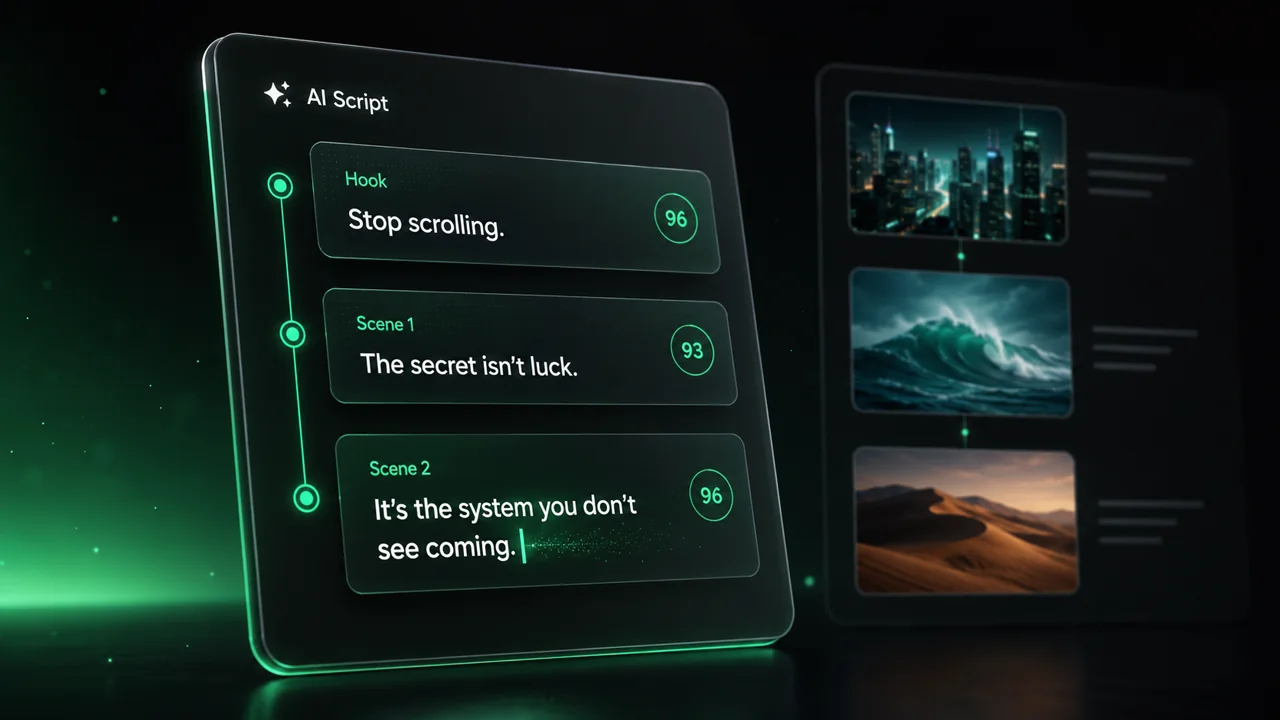
  • Write your script or just give the topic to our AI
  • The AI will suggest relevant content to inspire you
  • Paste a link, our AI analyzes it and turns it into a video
Storytelling designed to captivate
3
Step 3

Videos you will love

Create professional videos, share them with one click, and grow your audience.
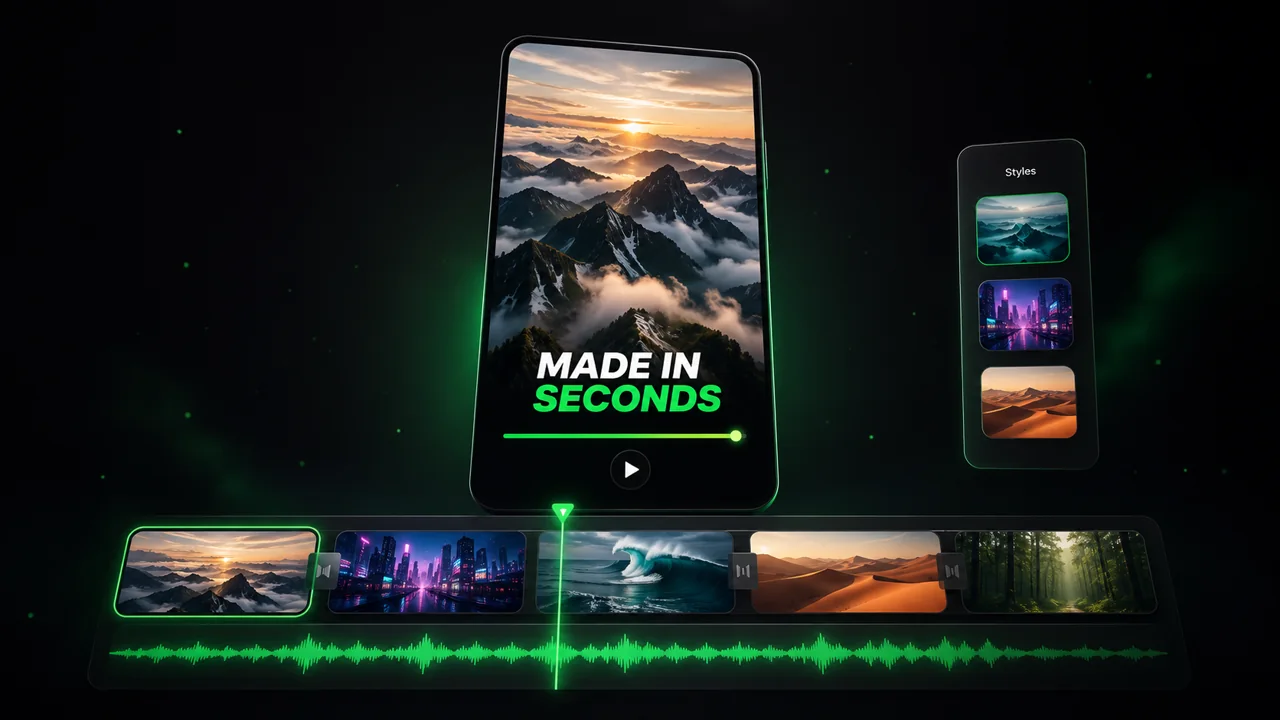
  • Watch your texts turn into professional videos
  • Automate video creation from your content
Videos you will love
4
Step 4

Publish on TikTok, YouTube, Instagram and more

Reach a wider audience by sharing your videos across all your networks.
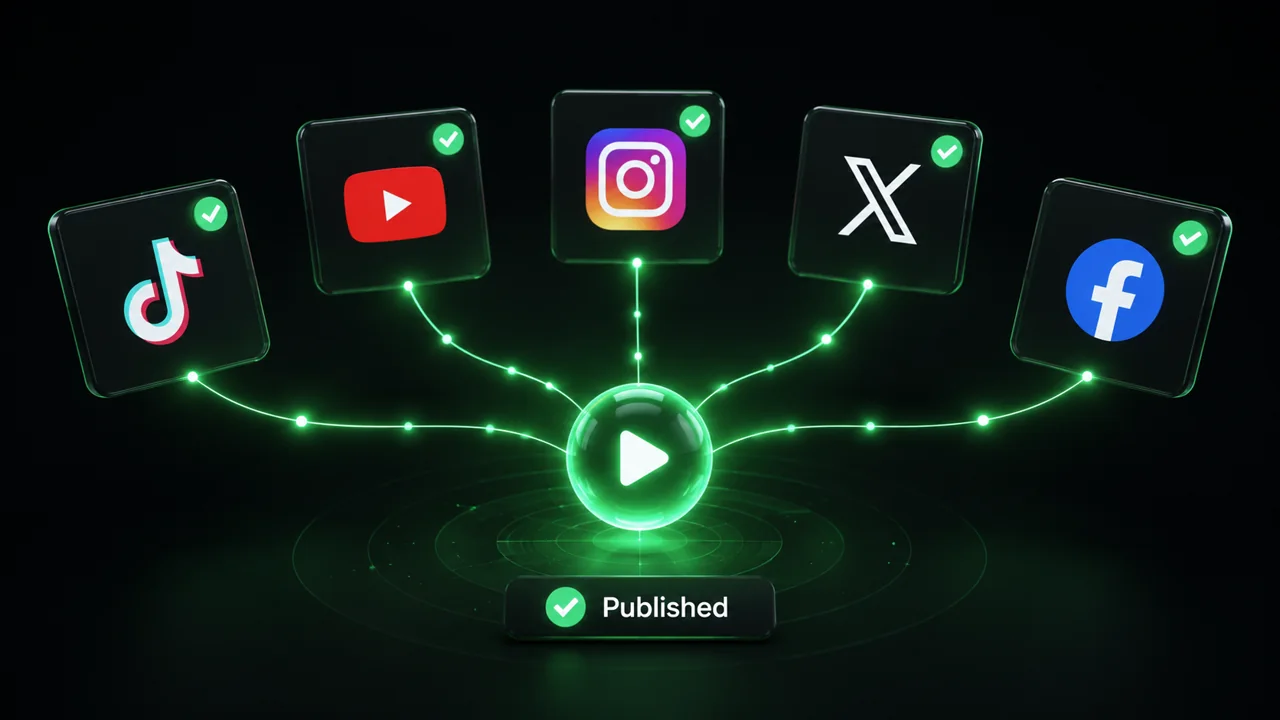
Publish on TikTok, YouTube, Instagram and more
revid.ai logo

The fastest way to create captivating videos.